
More Service Jira Integration
Version: 1.0
Date: 2026-01-26
Changed by: Peter Anton Meyn
Description
This document describes how to configure an integration between More Service and Jira.
Creating Issues in Jira from More Service
More Service uses an API Token and username to create issues in Jira. The Jira user determines the permissions More Service has.
Setup in Jira
To allow More Service to create and update issues in Jira, a new or existing Jira user must be designated for integration use.
Creating an Access Token in Jira
Steps:
- Click the user icon → Account Settings
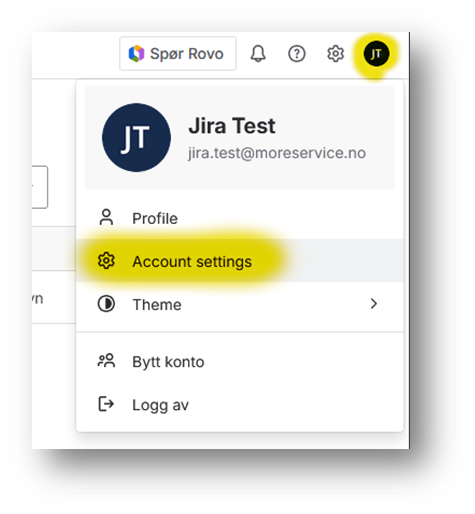 – User icon → Account Settings]
- Select Create and manage API tokens
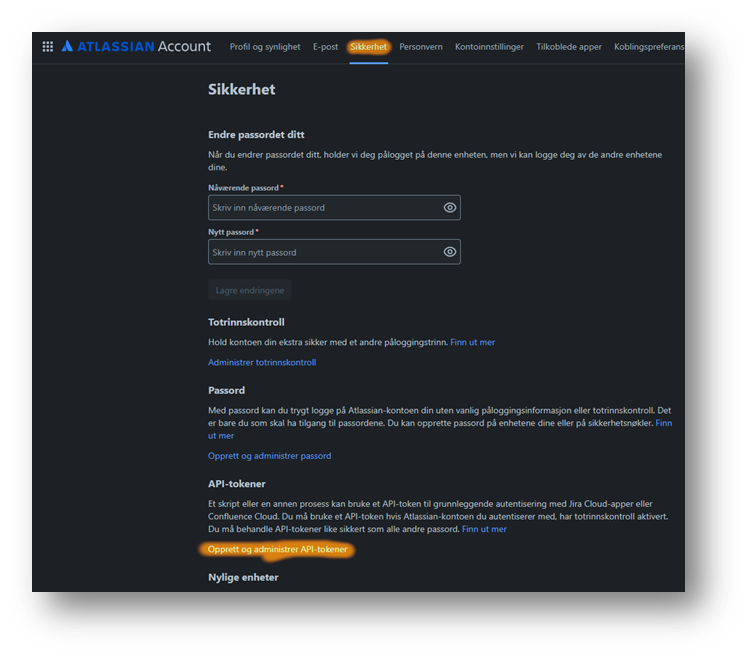
- Click Create API token
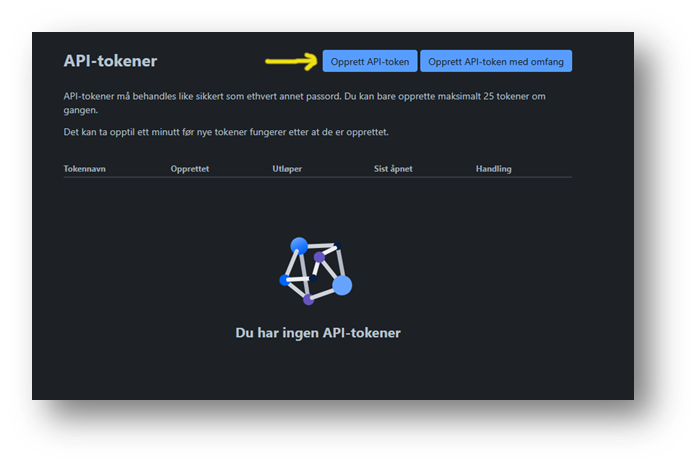
- Name the token and set expiration
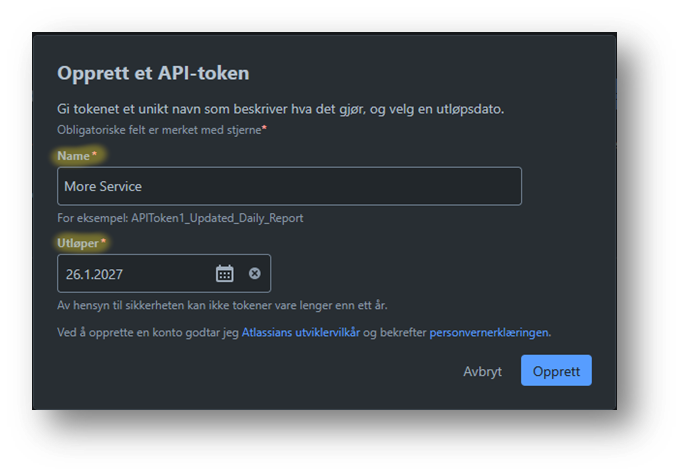
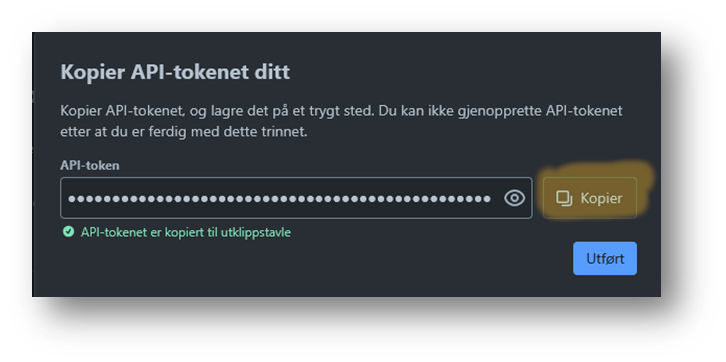
- Copy the generated token
[
Setup in More Service
Navigate to Apps → Configure
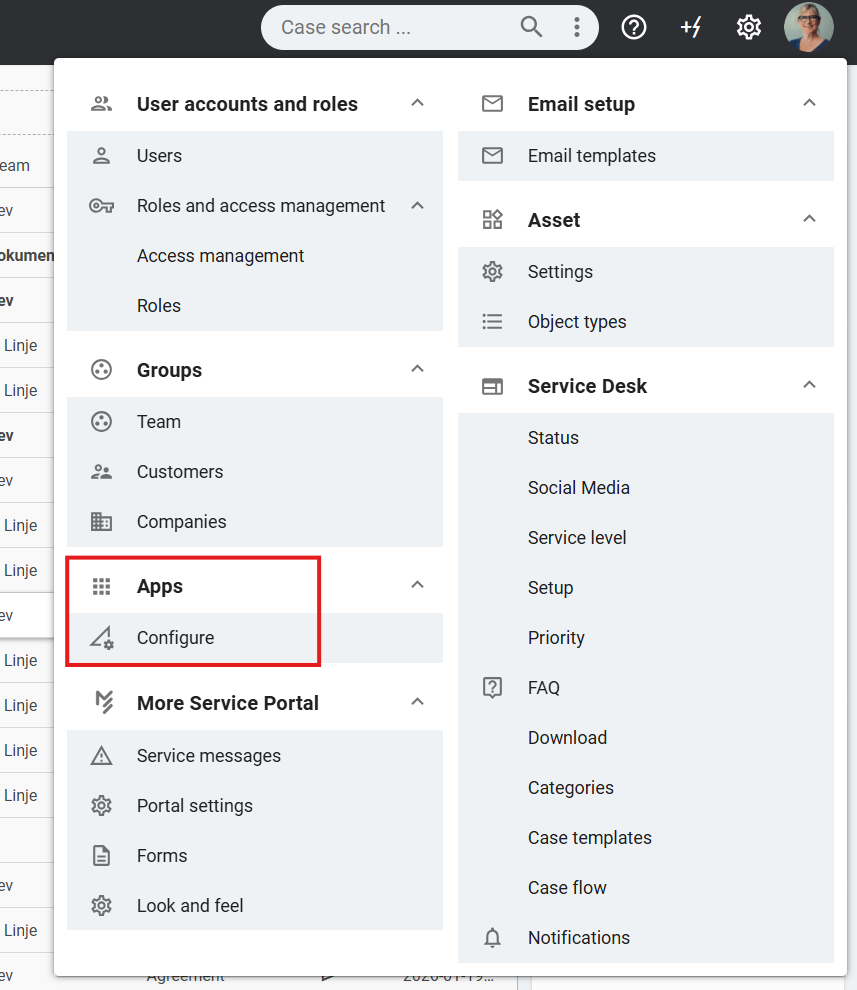
Select Jira
[IMAGE PLACEHOLDER – Jira selection]
Fill in Jira Domain, Username, Token, Webhook Secret
[IMAGE PLACEHOLDER – Completed Jira configuration]
Updates from Jira to More Service
Issues created via More Service are labeled MoreService and MS_{CaseNumber}
[IMAGE PLACEHOLDER – Jira labels example]
Setting Up a WebHook in Jira
Steps:
- Open System Settings → Advanced
[IMAGE PLACEHOLDER – System settings]
- Click Create WebHook
- Fill Name, URL, Secret, Description
[IMAGE PLACEHOLDER – WebHook configuration]
- Filter: labels = MoreService
- Create WebHook
[IMAGE PLACEHOLDER – WebHook active]
Mapping Teams to Projects in Jira
Select New Project
[IMAGE PLACEHOLDER – New Project button]
Provide project key and select team
[IMAGE PLACEHOLDER – Project mapping]
Example: SCRUM → Development Team
Changelog (Technical)
Commit: 9586e8a3904b86f46a168508342ba52008ccfd6c
Scope: 45 commits
Jira Integration
- Refactored core Jira integration to improve maintainability and change tracking
- Added support for Jira issue creation
- Implemented Jira webhook handling, including:
- Webhook secret validation
- New
WebHooksServerproject
- Enhanced Jira message processing with persistent database logging
- Improved attachment handling in Jira workflows
- Added support for project‑specific Jira data
- Added support for multiple Jira teams in configuration management
- Refactored Jira team deletion logic and aligned related UI behavior
- Updated Jira documentation link generation (
generateLinkToJiraDocs) - Added
AppIdsupport to Jira integration
Asset and Device Management
- Added ISACA field support to asset management
- Updated
getIsacaFieldsfiltering logic and enforced read‑only fields - Refactored asset management to improve data handling consistency
- Refactored
AzureDeviceand enhanced asset field processing - Improved device processing logic for better readability and maintainability
Object Initialization and Data Model
- Refactored and standardized object initialization logic
- Added
ownerfield toMSObjectinitialization - Improved overall data flow and object consistency
Stability and Validation
- Added null/empty checks prior to invoking
Connectmethods - Improved error handling and defensive coding in several core paths
Infrastructure and Configuration
- Updated Redis channel constants in
RedisChannels.cs
Maintenance
- General refactoring and cleanup across modules to improve code quality, consistency, and long‑term maintainability
If you want, I can also provide:
- a GitHub‑style CHANGELOG.md en
