Webhooks in More Service – Documentation
Description
This document explains how Webhooks work in More Service and how to activate and configure them.
1. Setup
1.1 Activation
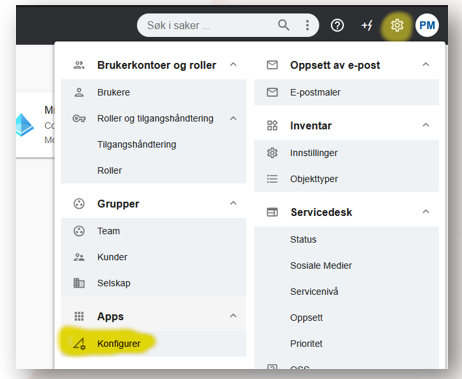
To activate Webhooks:
- Go to Settings.
- Under Apps, select Configure.
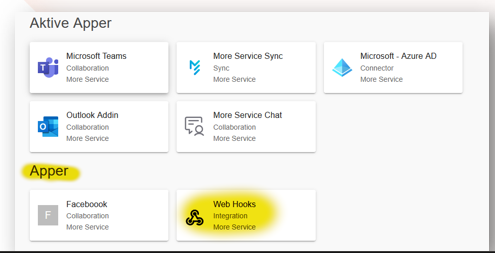
- If Web Hooks is not yet activated, it will appear in the list under Apps.
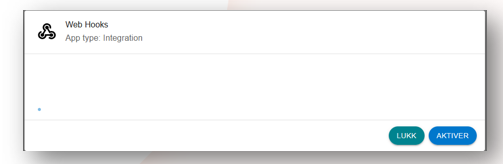
- Click on Web Hooks to open the activation dialog.
- Select Activate to enable it.
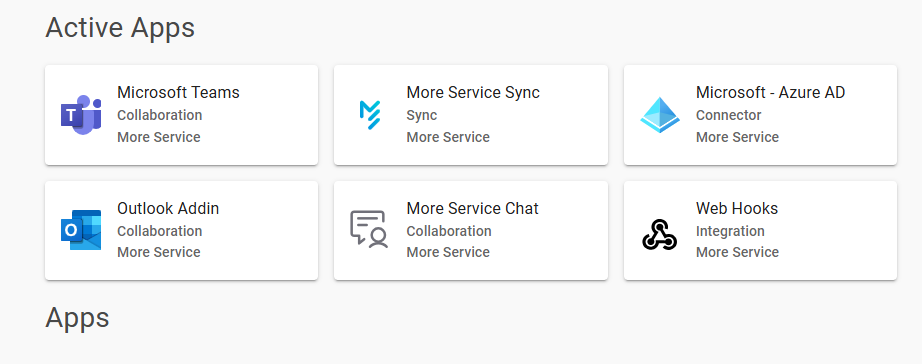
Once activated, Web Hooks will appear under Active Apps.
2. Configuration
2.1 Prerequisite
Before configuration, Web Hooks must be activated and visible under Active Apps.
2.2 How to Configure Web Hooks
Select Web Hooks under Active Apps and complete the following fields:
Destination
- The URL to which Webhook data will be posted.
- This must be an HTTPS address to ensure secure data transfer.
Username
- The username used for authentication.
Password
- The password used for authentication.
Note:
Username and password are transmitted in the request header using Basic Authentication.
Team
- Select the team whose events should trigger Webhook notifications.
- Only events assigned to this team will be sent.
3. Data
Webhook data is transmitted from More Service as an HTTP POST request:
- Authentication is done via Basic Authentication in the request header.
- The payload is formatted as JSON and sent in the request body.
4. Data Structure
Data is delivered through the WebHook object, which may contain the following lists:
- Update: Events that should be updated
- Create: Events that should be created
- WorkLogAdd: Comments to be added to existing events
- AttachmentAdd: Attachments to be added to existing events
- CreatedAt: The timestamp indicating when the dataset was generated
5. Examples
5.1 New Event
(Insert example JSON here if you want me to format it.)